Make the Waiting Time Yours
Tweak a design at the coffee shop, work through an idea at the airport or start a part while waiting for an appointment. Open your phone or unfold your Android screen and keep designing.
Digital to Physical
Give your AI an idea, a reference image or an existing design. Fireball Designer gives it the tools to create your first draft across 3D, mesh, vector, raster, CAM, PCB, documents and video — one connected project for something you can actually make. AI drives the design. You set the direction, review and refine.
macOS · Windows · Ubuntu ·
iOS · iPadOS · Android
Designer is in pre-release. Explore the complete product vision; downloads follow the available pre-release builds.
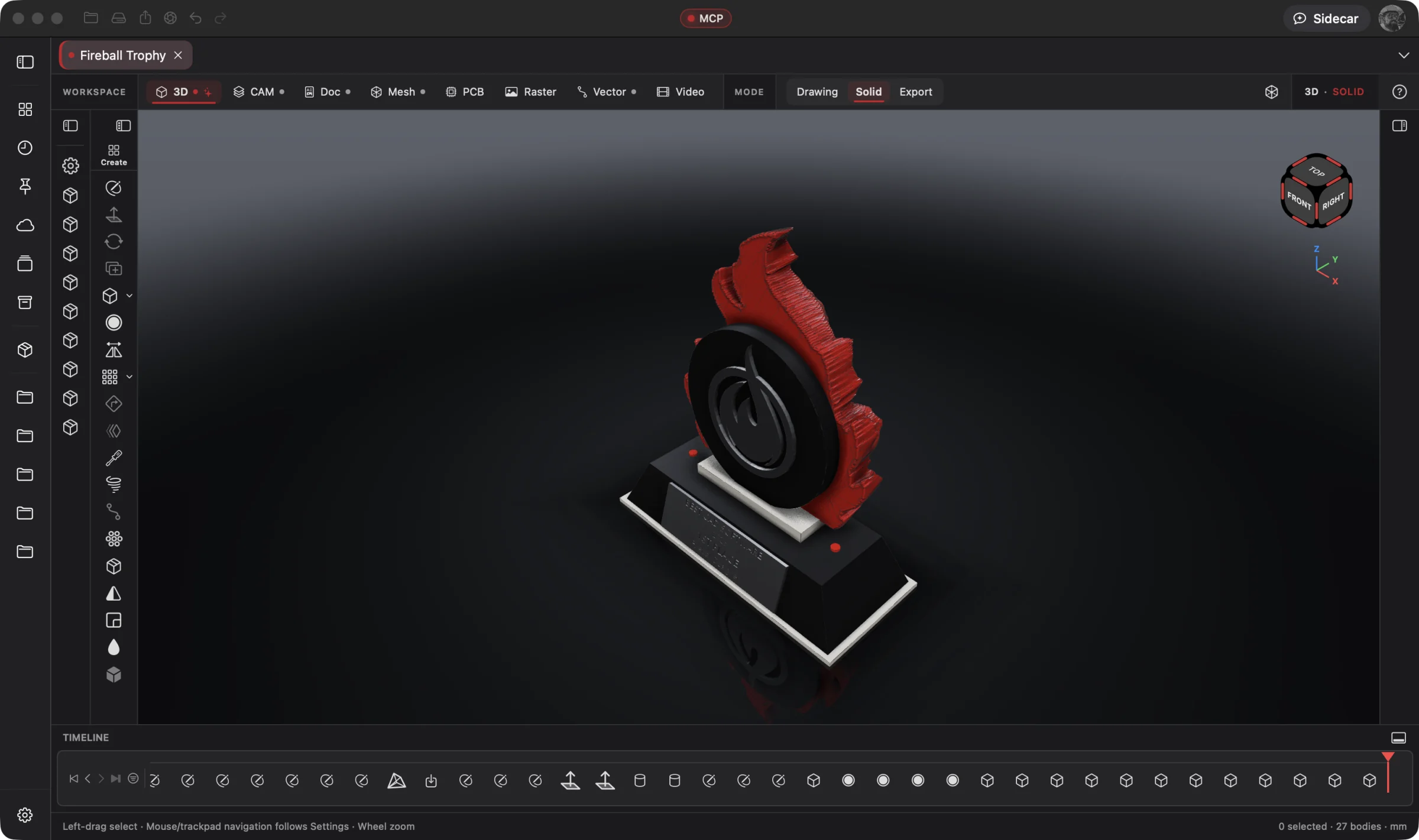 Enlarge
Your Idea. AI Does the Work. The Fireball Trophy project, open in Designer. See the reference image, artwork, model and making files come together across eight workspaces.
Designer v0.19.0 · macOSDesktop · Tablet · Phone
Create and edit across macOS, Windows, Ubuntu, iOS, iPadOS and Android. Native apps put the design tools in your hands, with your favorite compatible AI at the controls. Mobile is a place to do the work: start a design, change a part, refine artwork or direct your AI.
Tweak a design at the coffee shop, work through an idea at the airport or start a part while waiting for an appointment. Open your phone or unfold your Android screen and keep designing.
Draw and refine with Apple Pencil on a supported iPad. Use touch on your phone or tablet, then a mouse and keyboard at your desk. Native interfaces fit the device and keep the editing tools within reach.
Windows to Mac to Ubuntu: the same .fireballdesign project, with all eight workspaces together. Choose cloud sync to pick up the project on your phone, tablet, desktop or laptop. Your local project files remain yours.
CAD, vector illustration, photo editing, machining, electronics, documentation and professional video editing share one studio and one project. Keep your preferred AI connected as you move between the workspaces. The apps are built around native desktop and mobile interaction.
Explore Platforms →Model, cut, draw, document, and shoot a part without exporting between a half-dozen different apps. Add the workspaces you need; the ones you don't stay out of the way.
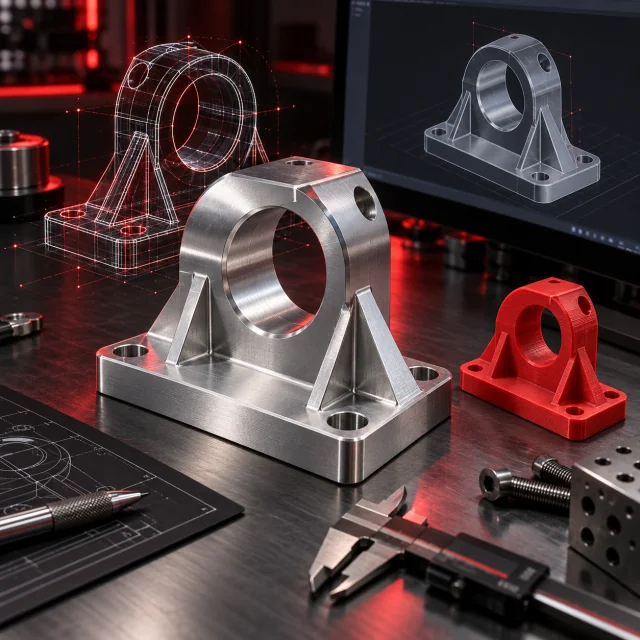
Parametric solids with an editable history, sheet metal, studio renders.
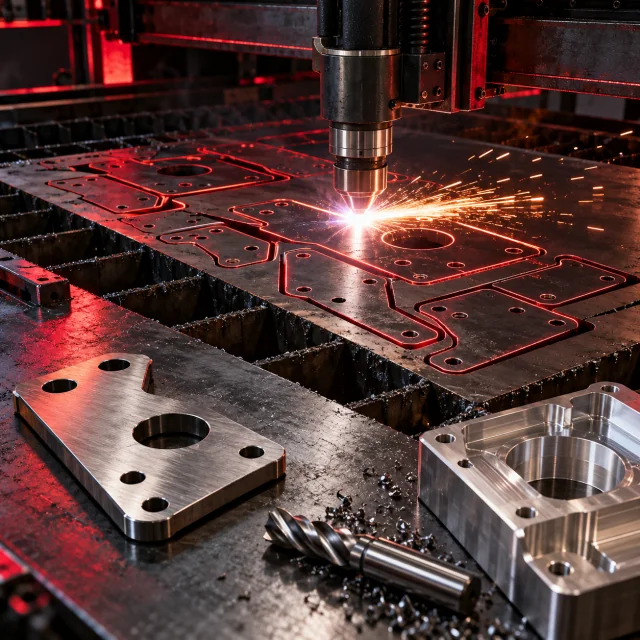
Plasma and milling toolpaths, nesting, cut order and G-code for your machine.
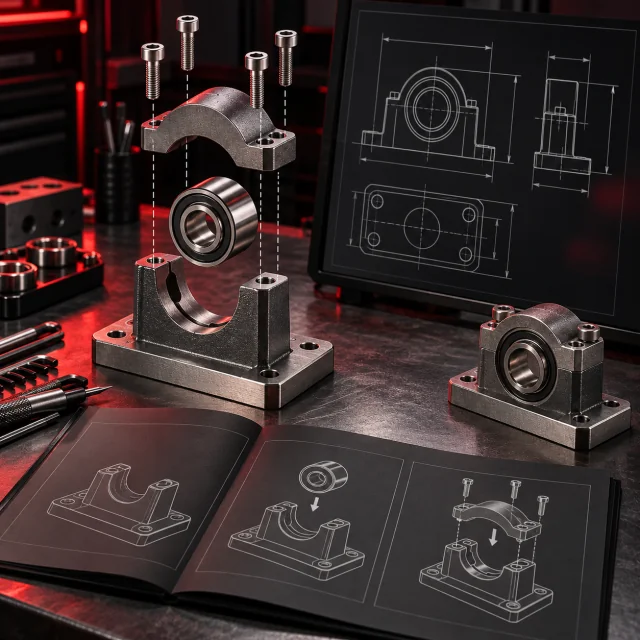
Shop drawings, assembly steps and customer manuals bound to the model.
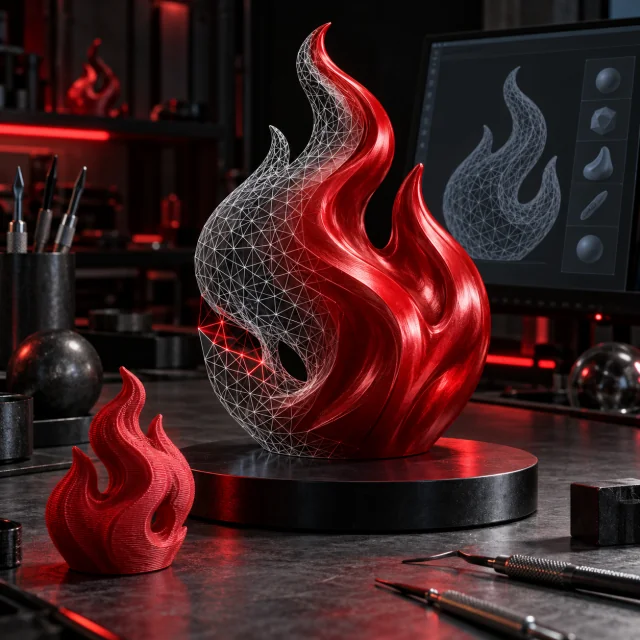
Model, shape and repair meshes for real objects, from display pieces to 3D prints.
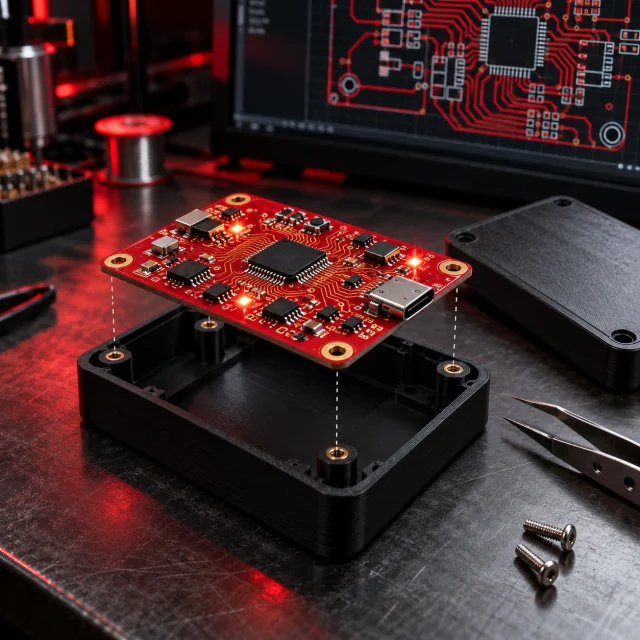
Schematics, one-click boards and fab packages, fitted to the enclosure in 3D.
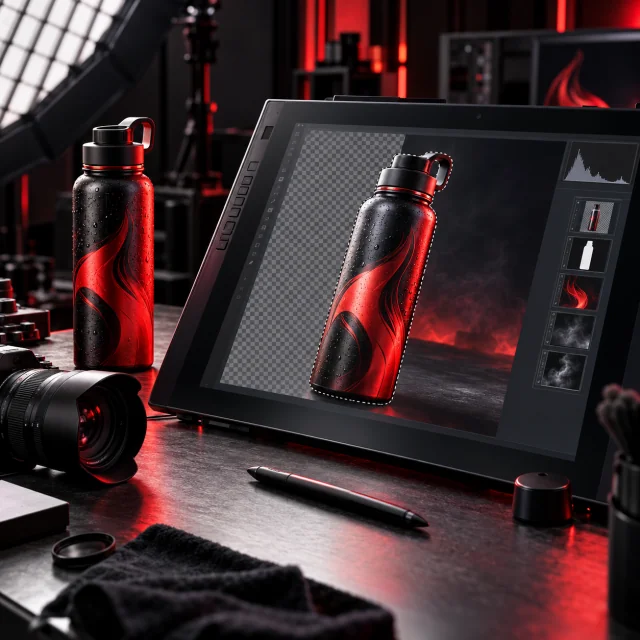
Full raster editing, background removal and replacement, with hands-on tools or AI control.
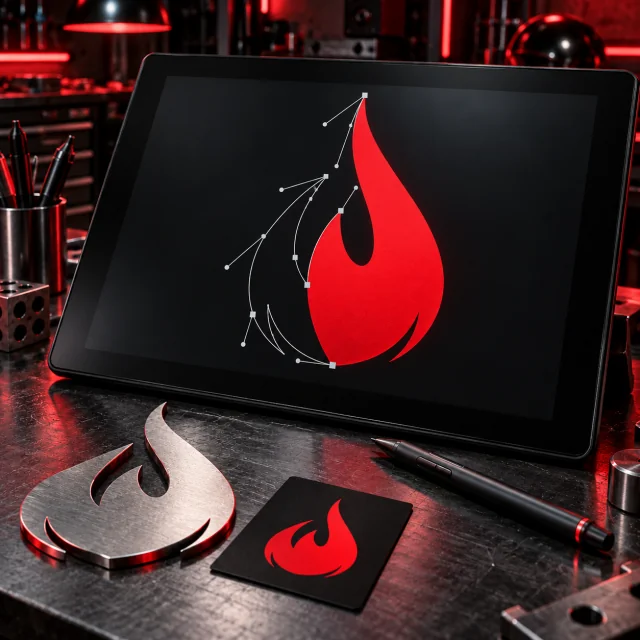
Create logos, edit vector artwork and convert raster images to paths, by hand or with AI.
AI-edited customer assembly and product how-to videos for YouTube, with professional editing tools.
One Idea · Eight Workspaces · One Project
A flat AI-generated image becomes the starting point for a physical build. Give your connected AI the mockup and a prompt: create the first draft of the entire trophy, including the files to make it.
This is the end-to-end workflow Designer is built for. You approve the direction and refine the result; your AI carries the design across the workspaces.
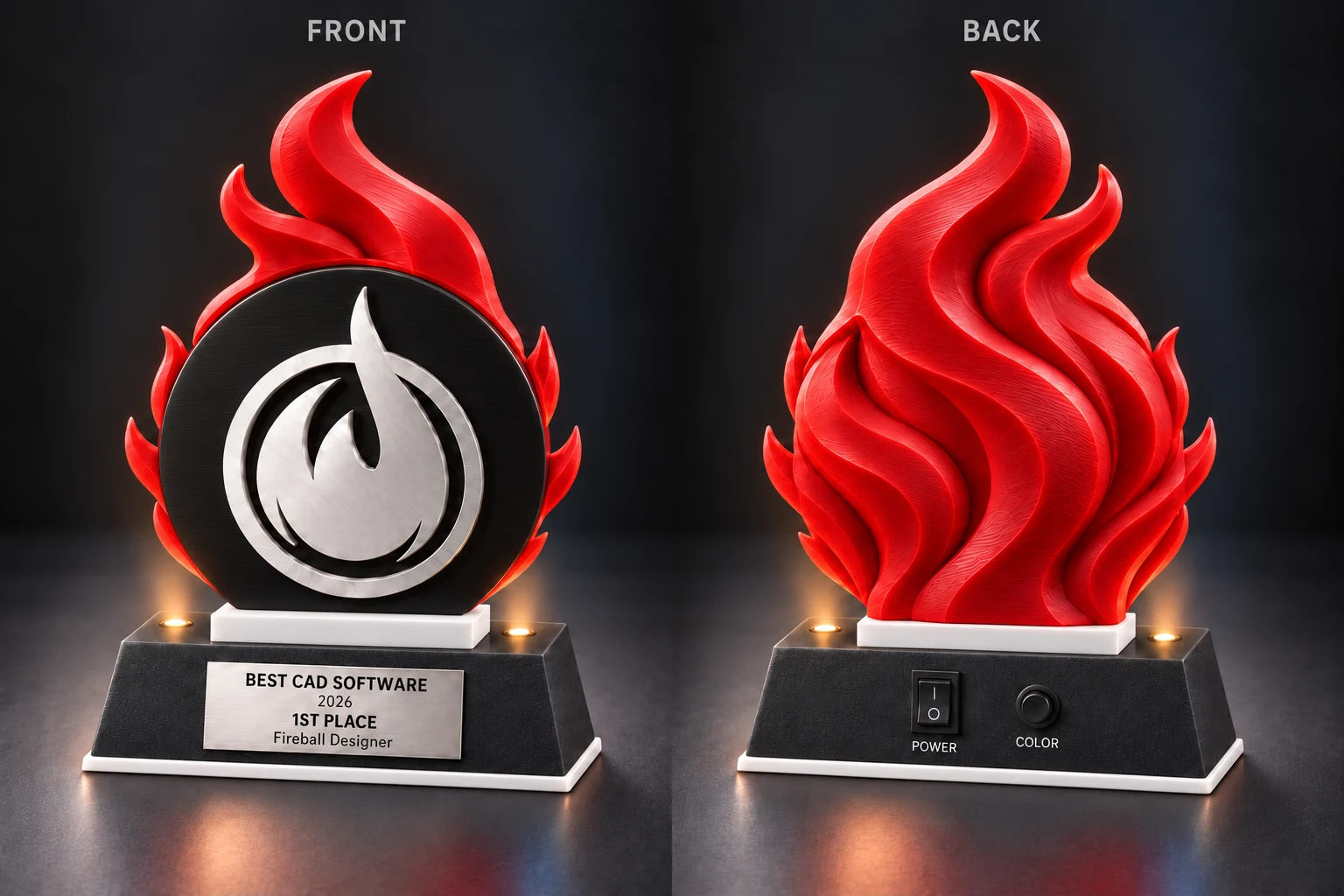
Attach the reference image to your AI conversation, connect your assistant to Designer through MCP, then paste this prompt.
Use the attached front-and-back trophy image as the reference. You are connected to Fireball Designer through MCP. Build the complete first draft in one project using Designer’s tools. Make the design, not just a set of instructions for me to follow.

1. Raster and Vector: import the reference, separate the views, remove the background and extract the flame logo into clean, editable vector paths.
2. 3D: model the round back, base and mounting parts for 3D printing. Include screw bosses, wire routes, rear power and color controls, and a removable bottom cover with space for the lighting PCB.
3. Mesh: shape the red sculpted flame from the reference, refine and check it for printing, then convert it to a solid and assemble it with the other parts in 3D.
4. CAM: prepare the silver logo for plasma cutting from sheet metal and the plaque for laser engraving on my Bambu Lab H2D with the 40 W diode laser attachment.
5. PCB: design the RGB LED lighting circuit and board, including power and color controls. Fit the board to the base and prepare fabrication files, a bill of materials and component-placement files for a PCB assembly service.
6. Doc: create the parts list, print and shop notes, wiring diagram and step-by-step assembly guide. Export a PDF.
7. Video: use the model to create an assembly animation and a product reveal. Prepare a YouTube how-to timeline showing assembly, lighting connections and product use, with titles and captions. Add my workshop footage and narration when I supply them.

Use millimeters. Choose sensible first-draft dimensions and record your assumptions. Ask for missing material, machine or component details that affect fabrication. Check fit, mesh geometry, toolpaths and the circuit; flag anything that needs physical testing. Keep everything editable, save after each stage and export the build package to a folder I choose. Finish with a summary of the files and decisions I should review.
Start with a front-and-back trophy mockup made with your preferred image AI. Your connected design AI imports it, removes the background and isolates the logo.
AI traces and refines the logo into editable vector paths, sized for a sheet-metal centerpiece.
AI models the round back, base, mounting points, wire routes and PCB recess, then refines the parts for 3D printing.
AI shapes the sculpted flame, refines and checks the mesh, then converts it to a solid for the 3D assembly.
AI prepares the plasma-cut logo and laser-engraving design, with toolpaths and machine-specific output for review.
AI designs the RGB LED circuit and board, fits it to the base and prepares fabrication and assembly files for a board manufacturer.
AI creates the parts list, print notes, shop instructions, wiring details and assembly guide that turn the design into a build.
AI edits workshop footage and model-based assembly sequences into a customer how-to: assemble the trophy, connect the lighting and use the finished product. Add narration, titles and captions for YouTube.
The deliverable is a build package: 3D-print files, cut paths, engraving output, PCB fabrication and component-assembly files, assembly documentation and a customer how-to video. Review dimensions, fit, circuit checks and machine output before fabrication. Machine-specific jobs need hardware validation.
Create your initial mockup with the image tool you already love. Designer turns that reference into editable physical designs and makes video from your design and footage.
Real App Screenshots
See the Fireball Trophy project inside Designer: the reference image, logo artwork, flame mesh, 3D assembly, cutting setup, light board, build document and product video.
Your idea gives AI the direction. Designer keeps the work connected and editable, so you can review each stage and ask for the next change. These are real screenshots from Designer v0.19.0 on macOS; open any image for a closer look.
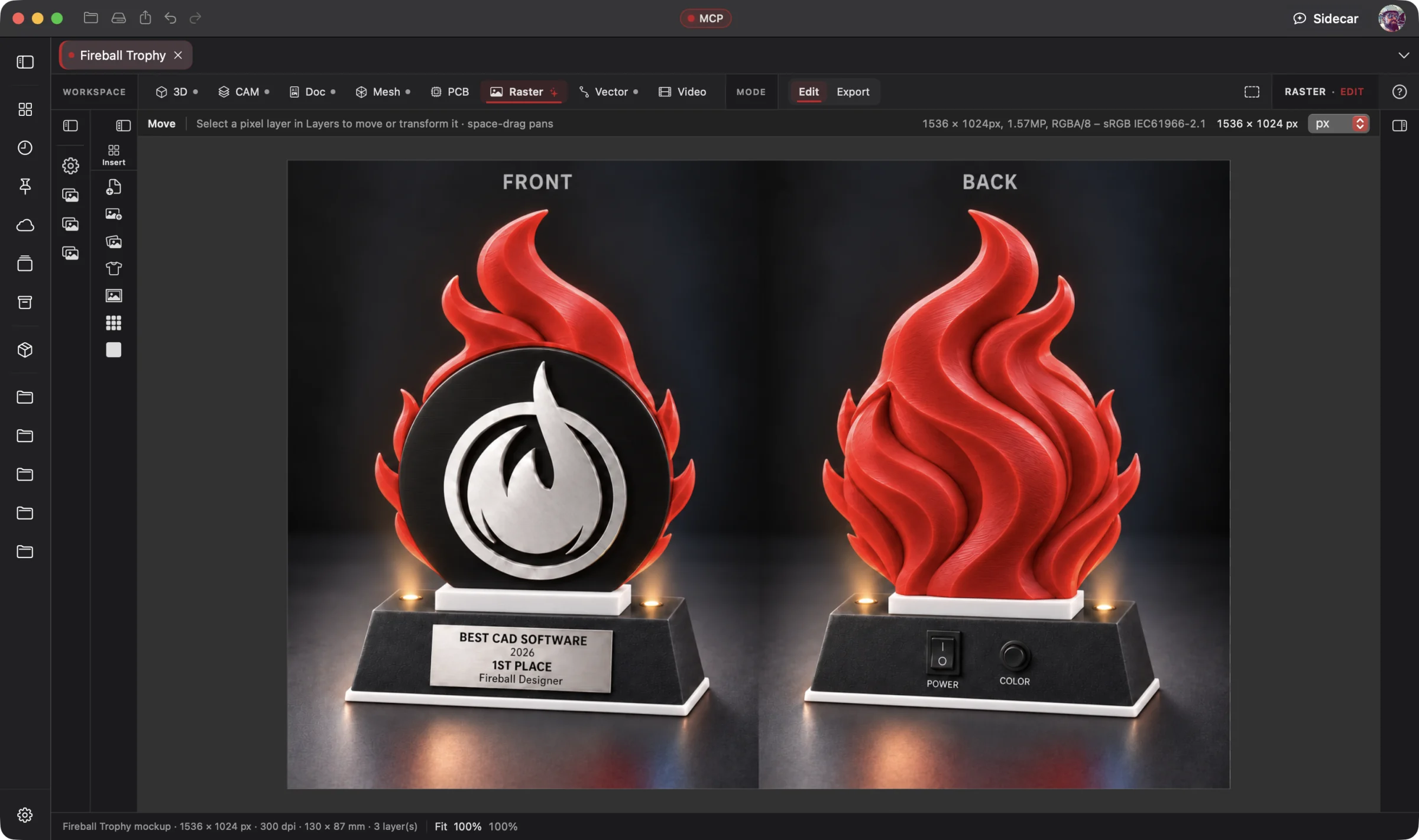 Enlarge
The original trophy concept, front and back, open in the Raster Workspace. Its plaque text is illustrative.
Explore Raster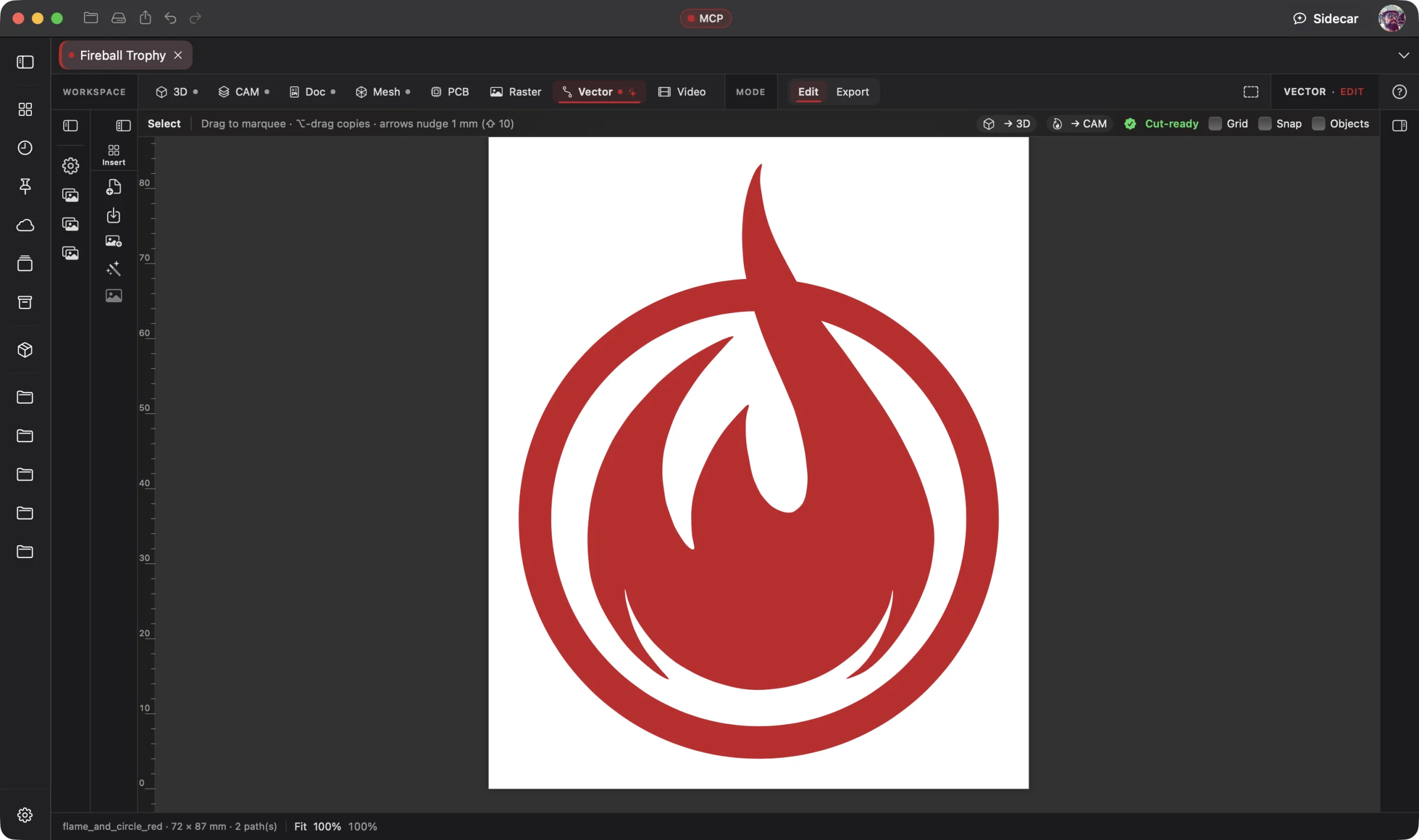 Enlarge
The Fireball logo as vector artwork, ready to work with in the same project.
Explore Vector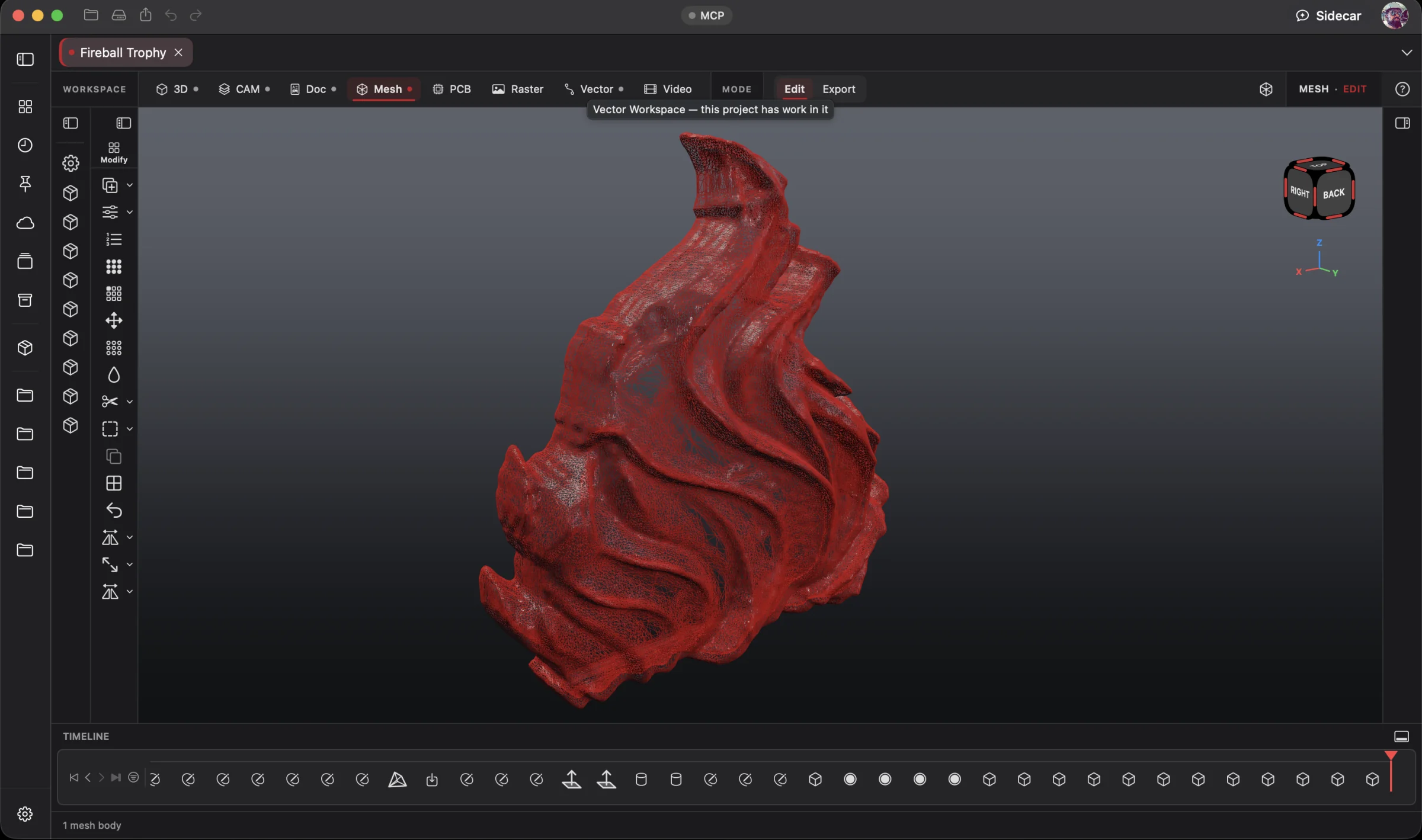 Enlarge
The flame sculpture and its triangle wireframe, isolated in the Mesh Workspace.
Explore Mesh
Enlarge
The trophy assembly in the 3D Workspace, with its model history along the bottom.
Explore 3D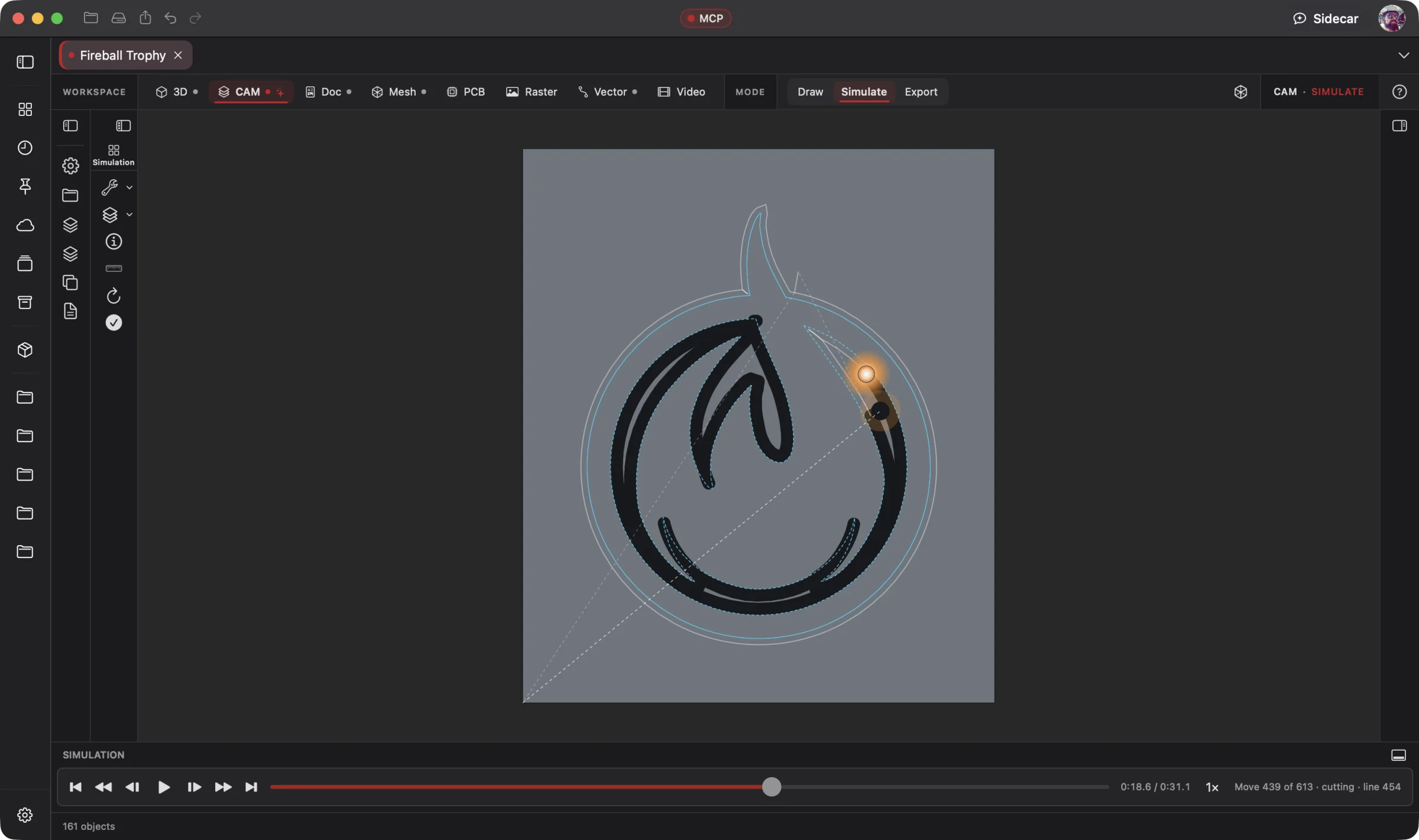 Enlarge
The logo cut simulation, with tool motion and playback controls visible.
Explore CAM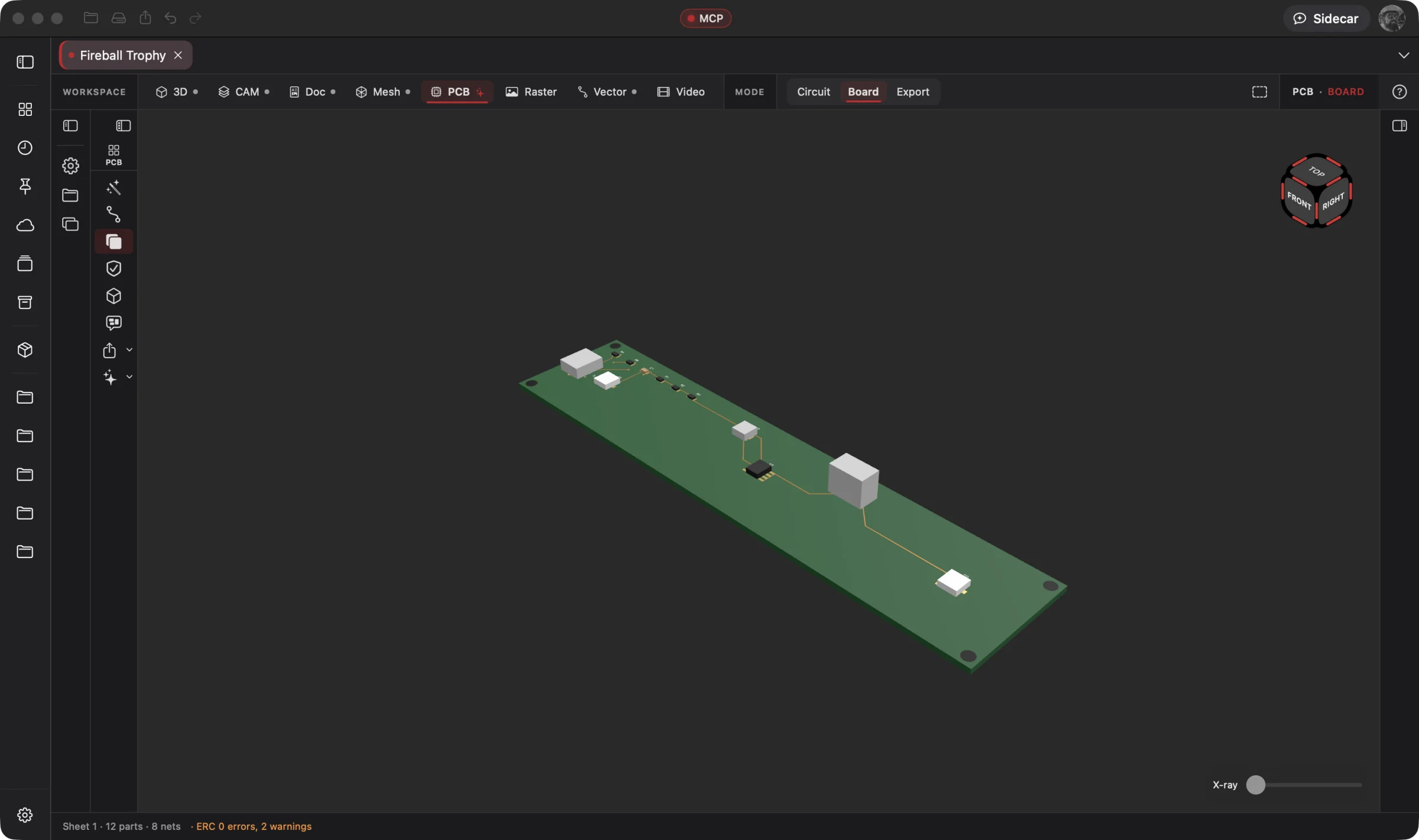 Enlarge
The trophy's light board in the PCB Workspace, part of the same project as the enclosure and assembly.
Explore PCB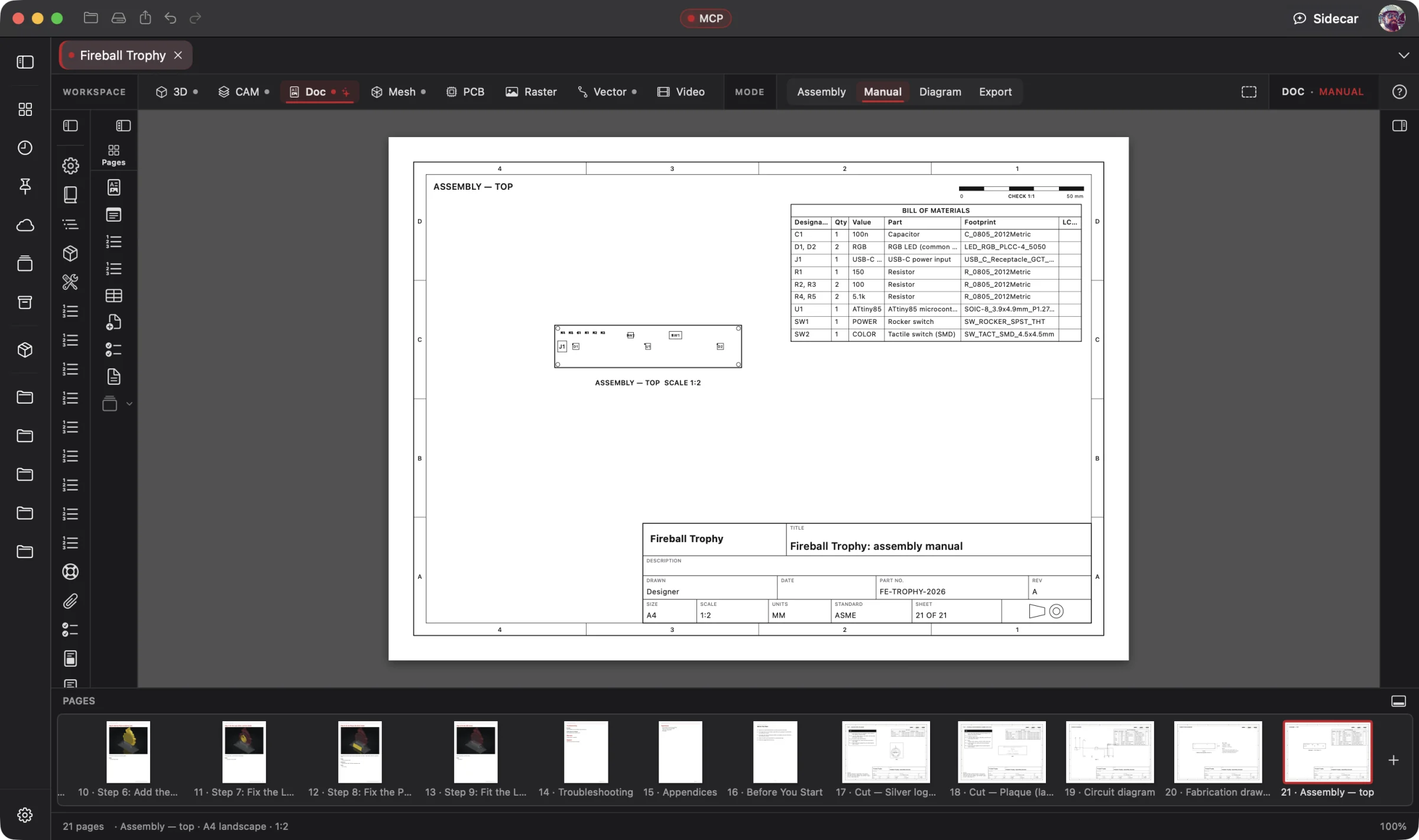 Enlarge
A sheet from the trophy's 21-page document, with its parts list and the manual's page strip visible.
Explore Doc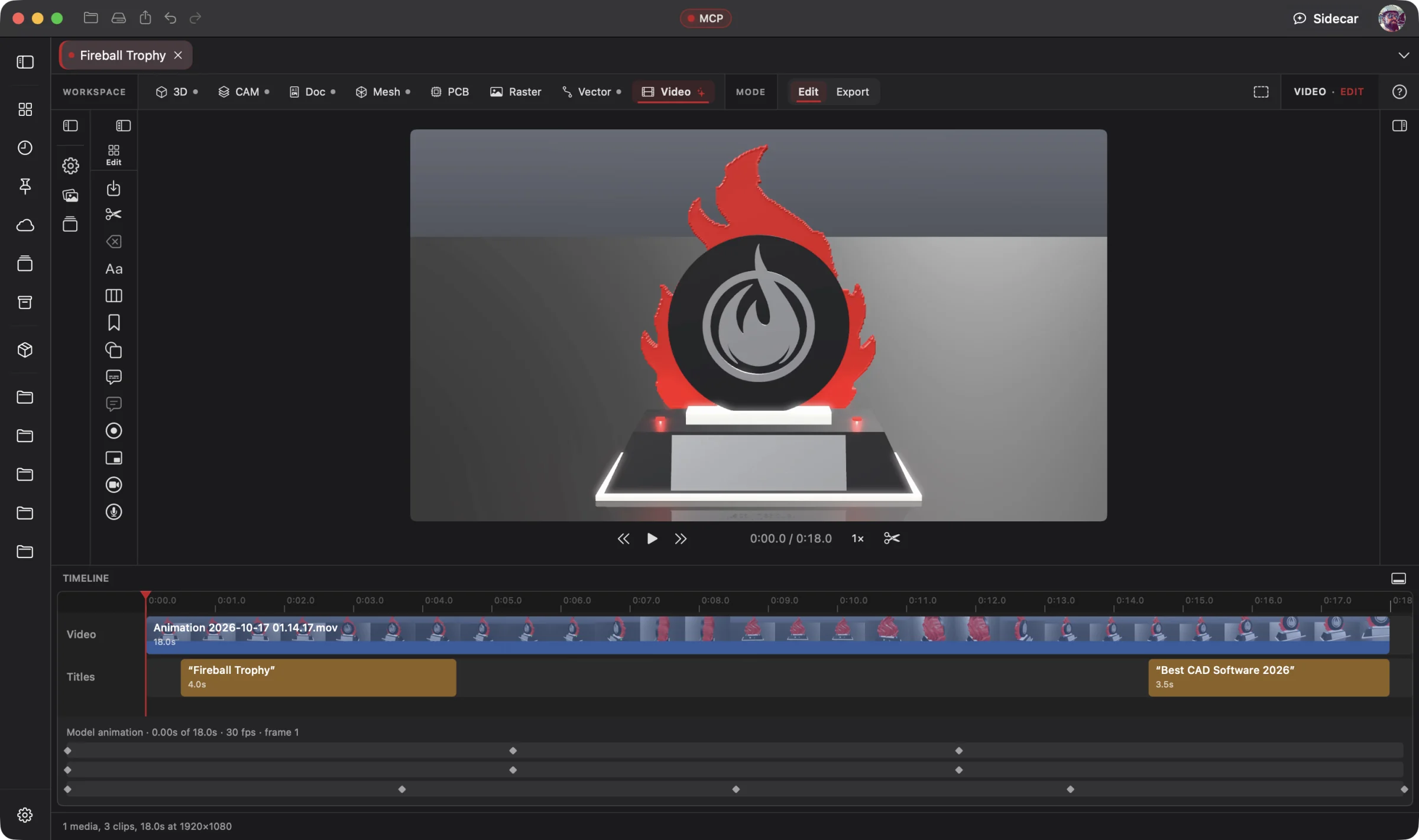 Enlarge
The trophy video on the timeline, with title clips and animation tracks beneath the preview.
Explore VideoSo close to finished, but stuck on one detail? Bring your existing CAD work into Designer through the Fusion export workflow or supported design formats. Connect your AI and let it inspect the actual geometry.
“Look at these slide covers. I need to protect my plasma table’s targeting lasers from splash without blocking adjustment. Show me some ideas.”
Discuss clearances, mounting and movement with an AI that can see the model. Pick an approach, say “Build it,” and let AI edit the design. Review the result, iterate and export the revised parts for fabrication. Your existing work becomes the starting point.
AI Drives. You Direct.
Your AI works on the design itself: inspect geometry, build parts, refine a mesh, prepare manufacturing files and write assembly instructions. Native MCP connects a compatible assistant to Designer’s tools across all eight workspaces. Every change stays editable and undoable. Use the hands-on tools whenever you want.
Sidecar Bronze is included with Designer Pro and Commercial at no extra charge. Other plans can start with Sidecar’s free tier. It is built for lightweight help; long sessions and complex jobs can use Credits quickly. Choose the AI that fits the job, from built-in Sidecar to a connected frontier assistant or supported local model.
Learn about SidecarNative MCP server
Connect Claude Code, Codex or another MCP-compatible assistant to Designer for more involved work. MCP is the connection that lets your assistant inspect and use tools in your open project. Designer’s native MCP server is built in, off until you enable it, and limited to what you share.
No Sidecar subscription is needed for MCP. Bring your own assistant account; its provider’s charges and usage limits still apply. You review the work and keep control of the project.
An example of a focused Sidecar task
You
Add a 6 mm fillet to every outside edge, then a countersunk hole at each corner.
Sidecar
→ filleted 14 edges (r 6) · added 4 countersinks (M4) · rebuilt in 0.3 s. Undo available.
Your AI accounts. Your local models. Your choice.
Let Fireball Wrangler handle your AI accounts and supported local models, so you can focus on what you want to make.
Manage your assistants across your computers in Wrangler, then connect a compatible assistant to Designer’s native MCP tools. Direct your AI to build a complete first draft, inspect the actual geometry and make changes you can review and undo. Keep Fireball Sidecar beside you for quick questions and focused everyday help.
Wrangler can download and run compatible local models, with guidance on what fits your hardware. Using one with Designer requires an assistant that supports tool use and a configured MCP connection; model capabilities and results vary. External AI accounts keep their own billing and limits.
The connected Fireball workflow: Wrangler discovers apps such as Designer and Trader, connects when you enable their MCP access, and gives your AI the tools to work inside them. Choose a frontier provider or a supported local model, and change models as AI improves. Your design workflow stays yours.
Explore Wrangler →A lightweight, affordable AI helper for the next question or a focused change in your project.
Explore Sidecar →The same bring-your-own-AI idea, applied to the market. An AI-driven workspace for market research, practice and authorized trading workflows.
Explore Trader →One family of apps, with different strengths. Pick the apps you want and compare an itemized monthly or annual total.
Build Your Bundle →Fireball Designer Warehouse
Your next great build can start with another maker’s project. Discover what the community creates, like the ideas that inspire you and save your favorites in collections. Open a shared design in Designer, make the changes you need and take it to the workshop.
Browse useful workshop parts, organizers, tabletop scenery, signs and complete builds. Like a project, save it to a collection and follow the maker for new designs and updates. Ask questions and learn from the project’s discussion.
Start with a shared project and adapt it within the creator’s sharing terms. Change the dimensions, add your logo or ask your AI to fit it to your space. Then print the parts or prepare the cutting, electronics and assembly work.
Publish your project from Designer. Share your build photos, print settings and assembly notes so someone else can start further along. Project revisions and remix credits keep the work and the makers behind it connected.
One Fireball account connects Designer and Warehouse. The same project carries the artwork, models, shop jobs, electronics and instructions together. Bring it into your native design workflow, ask your preferred AI for changes and keep creating across your devices.
Sharing is caring. Build a collection with your friends, club or team under your organization’s name. A good solution can keep growing as more makers put it to use.
Explore WarehouseStart with one 3D project for free — no card, no trial. Unlimited 3D projects are $5 a month; add other workspaces for $5 each per month. One Fireball account for your Fireball apps.
Preliminary pricing — draft, not final
$0
The 3D workspace, forever.
$5 / month to start
Or $55 / year — one month free.
A small business shouldn’t pay enterprise prices to make something good. Under ten employees you sell what you make on any paid plan — no revenue cap, no licence upgrade, no asking permission. Organizations are for friends and startups too: one owner handles billing, and members use their own logins. Businesses with ten or more employees use Commercial pricing with the same organization controls. A group’s member count is not its employee count.
Nothing here traps you. Move up or down a tier whenever you like — no minimum term, no downgrade fee. Organization setup explains how ownership of existing work changes before you convert an account. Extra Credits never expire and survive a plan change.
Individual, Organization & Commercial plans →
Choose your native app and keep the same project across devices — your
work stays in ordinary .fireballdesign files. One project format across macOS, Windows, Ubuntu, iOS, iPadOS and Android.
Apple silicon · macOS 15 or later
The full app, notarized by Apple. It keeps itself up to date.
24.04 or later · x64 and arm64
A .deb package. Updates come through apt, with your other system updates.
View downloadsFull editing on iPhone and iPad. Touch controls, Apple Pencil on supported iPads, and your cloud-synced projects.
View downloadsFull editing on Android phones and tablets, including foldable screens, with your cloud-synced projects.
View downloadsFor Autodesk Fusion · macOS and Windows
Bring your Fusion projects across: export every design with its timeline, sketches, parameters and CAM, then import into Designer.
FireballExport. On Windows, right-click the zip ▸ Properties ▸ Unblock first.