CAM · Cutting Setup
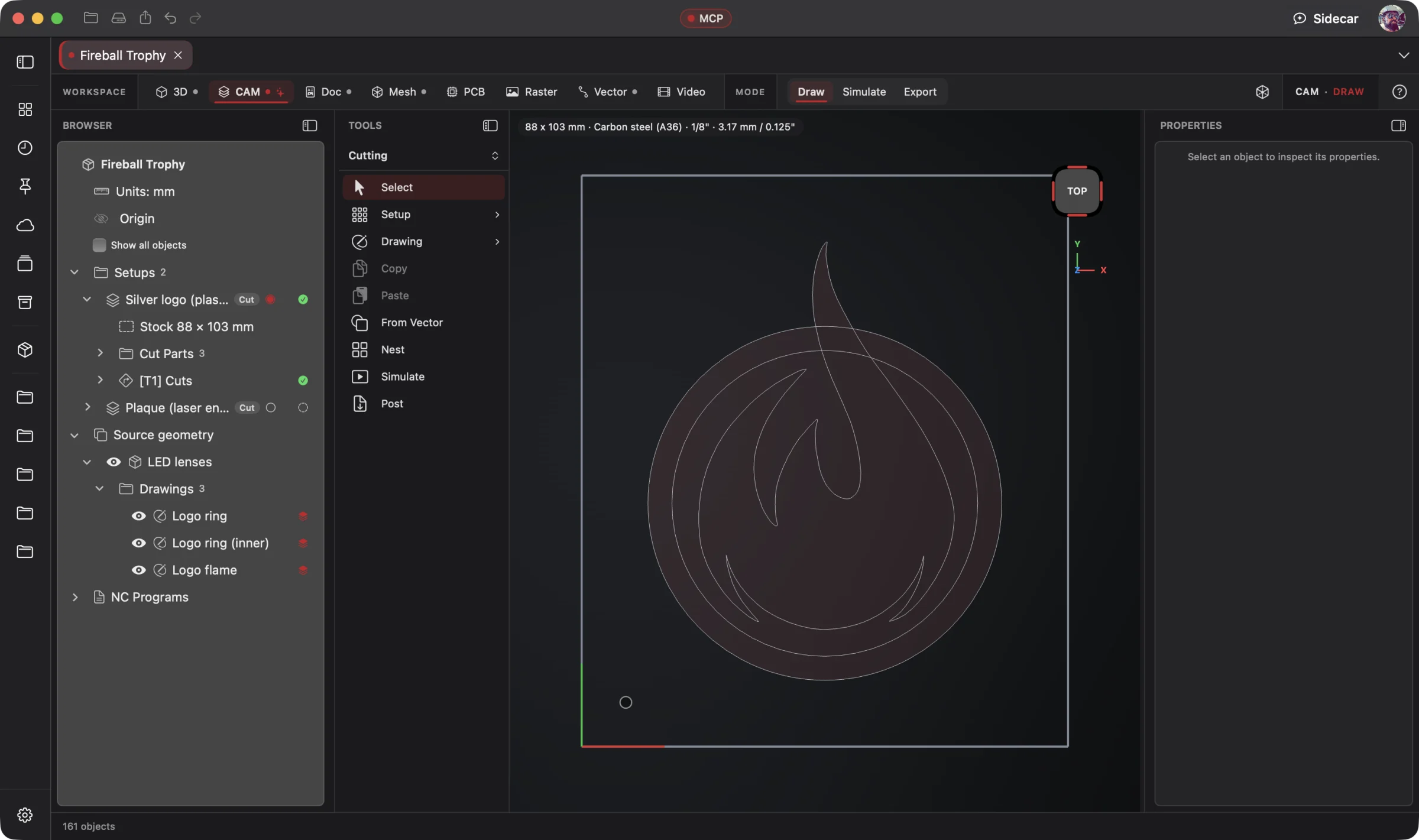 Enlarge
Cutting Setup
The logo profiles, stock and cutting setups stay with the source geometry in the same project.
CAM Workspace
Ask your AI to turn the design into a machining job: plasma, laser or CNC toolpaths, nesting, cut order and machine output. Review the setup and simulation before the job reaches your machine.
Connect your preferred AI through native MCP, use Wrangler to manage your providers and supported local models, or choose built-in Sidecar for focused work. Your AI creates; you direct, review and refine. Explore AI Workflows
Free 3D Workspace · One project · No credit card
macOS · Windows · Ubuntu · iOS · iPadOS · Android
 Enlarge
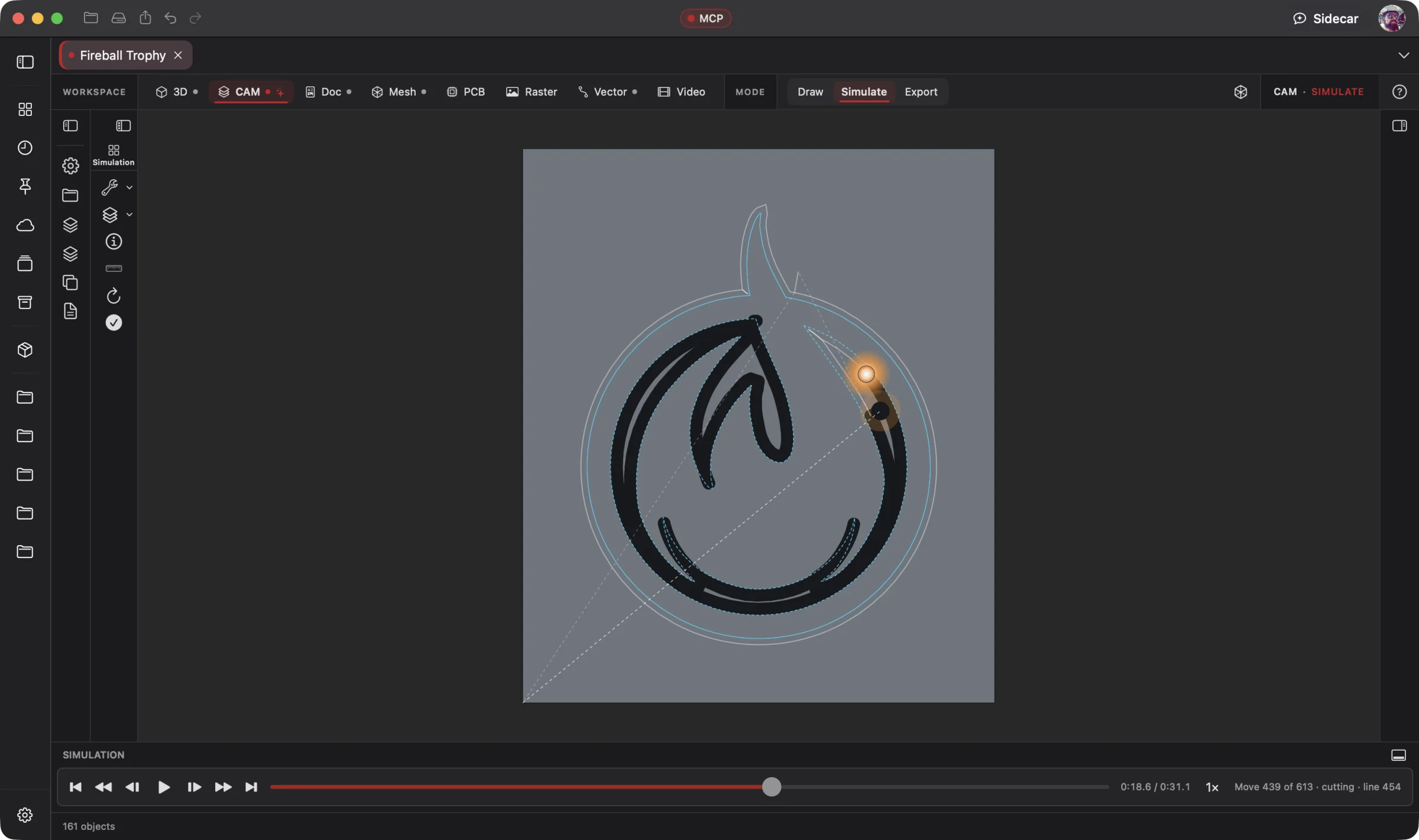
The logo cut simulation, with tool motion and playback controls visible.
CAM is part of one AI-driven design workflow: a reference image becomes artwork, physical parts, manufacturing jobs, electronics, assembly instructions and a product video. Your AI works across all eight workspaces in one project; you steer and review.
Bring an idea or the design you already started. Through native MCP, your AI sees the project geometry and makes real changes. Fireball Wrangler brings your provider accounts and supported local models together, with discovery and connection to Fireball apps when their MCP access is enabled. Built-in Sidecar handles focused tasks.
Full editing goes with you: native apps across macOS, Windows, Ubuntu, iOS, iPadOS and Android. Use touch, Apple Pencil on supported iPads, or mouse and keyboard. Windows to Mac to Ubuntu, the same .fireballdesign file keeps every workspace together. Choose cloud sync to continue on your phone, tablet or computer.
Designer is in pre-release. This site describes the complete product; download availability follows the published builds. AI capabilities depend on your chosen model and tool support.
The Fireball Trophy Project
Real screenshots from Designer v0.19.0 on macOS. Open any image for a closer look.
Enlarge
The logo profiles, stock and cutting setups stay with the source geometry in the same project.
Before and after
Today
Export a DXF, import it into a separate CAM app, redo the kerf and lead-ins, nest by hand, and start over every time the part changes.
With Fireball Designer
Change the part and recut it. The material, gauge, machine, nest and program already live in the project, and the simulation shows the whole job before the first pierce.
The bridge: the CAM Workspace keeps the cutting setup with the design, with Langmuir CrossFire presets and FireControl built in, and Sidecar can help prepare a setup for you to review.
What it’s for
The CAM Workspace turns the drawings and flat patterns already in your project into cutting programs. The setup (material, thickness, machine, stock and which parts) is saved with the design, so recutting after a change is a click, not a new job.
It starts with what makers own: plasma tables, with Langmuir CrossFire, CrossFire PRO and CrossFire XR built in, and small CNC mills for contour and pocket work. Every default is a starting point to tune on your own cutter, and the replies always say what they assumed.
Headline features
Type, material, thickness and machine, each with a sensible default, and the cut numbers behind one disclosure. create_cam_setup works with no arguments at all.
For you: less repetitive setup before you review the cut.
A36 and 1008 steel, galvanised, 304 and 316 stainless, four aluminiums, copper, brass and titanium. 16 ga is 1.519 mm in steel and 1.29 mm in aluminium, and Designer knows which.
For you: material presets give you a starting point to check on your machine.
Copies of every part across as many sheets as the job needs, with quarter-turns where the material allows, utilisation per sheet, and anything too big named, never dropped.
For you: more parts per sheet, and no shuffling rectangles by hand.
Four strategies with keep-parts-together as the default. Holes always go before the outline that frees the part, even a hole inside a hole; outlines run clockwise, holes counter-clockwise.
For you: parts don't drop out and tip before they're finished.
Kerf applied exactly once, arc lead-ins that pierce in the scrap, pierce delay, cut and rapid heights. The program is refused if a rapid is lit, a contour won't close or a move leaves the table.
For you: catch common toolpath problems before reviewing the program for your machine.
Langmuir FireControl (with torch-height control and probing), generic plasma, Langmuir CutControl and a generic mill built in, plus the .cps post processor your machine maker already publishes.
For you: your table gets the G-code dialect it expects.
Play the toolpath on a timeline and scrub it. The report gives cut and rapid length, pierces, sheets, utilisation, part weight and a time estimate that models acceleration and corner slowdown.
For you: you know how long the job takes and what it costs in consumables before you start.
Contour at the tool radius and concentric pockets that finish the wall last, with step-downs, for a Langmuir MR-1 or any mill.
For you: the same project cuts on the plasma table and the router.
Part-in-part nesting, drilling cycles and multi-tool milling, and laser and waterjet profiles. True-shape nesting packs parts efficiently; plasma tabs are left out on purpose, because a torch can't leave a web.
For you: less scrap on odd shapes, and more machines.
Built-in Sidecar
Use Sidecar to understand a setup, review a warning or help run a built-in CAM command. Keep the request focused and review the toolpaths and checks before machining.
You
Cut four of the bracket from 16-gauge stainless on my CrossFire PRO and simulate it.
Sidecar
→ setup: stainless 304, 16 ga (1.519 mm), CrossFire PRO · kerf, feed and pierce from the catalogue · 4 brackets nested with quarter-turns · holes first, outlines last · simulation ready. Change anything? Undo available.
Small tasks are Sidecar’s sweet spot. Quick explanations, a focused edit or help running a built-in tool. Longer projects and repeated tool calls can use Credits quickly.
Sidecar Bronze is included with Designer Pro and Commercial at no extra charge; other plans can use its free tier. Designer works completely with the panel closed.
Find the right AI help for your work →MCP · bring your own assistant
Connect your preferred compatible AI to Designer through native MCP. Let it inspect the actual project, create the first draft and refine the design through editable, undoable tool calls.
Over MCP, an outside AI draws the part, nests it, makes the setup and writes the G-code, then simulates it so you can check before you cut. Every tool reply names the defaults it used, and nothing reaches the machine until you send the file.
# Claude Code, connected to Fireball Designer over MCP
> Draw a 120 × 80 mm mounting plate, nest six on a 24″ sheet of 1/8″ steel for my CrossFire PRO, and write the FireControl program.
Six plates nested, a saved setup, a FireControl .nc program checked against the table, and a simulation to review it by.
Example prompt and the tool calls it takes. Designer’s MCP server is built into the app, off until you switch it on, and scoped to what you share. No Sidecar subscription is needed. Your assistant uses its own provider account, billing and usage limits; review its work before using the result.
Workflows
One project, every workspace
Every workspace keeps its work in the same .fireballdesign file, so a hand-off is a button (or one tool call), not an export and a re-import.
Fireball Designer Warehouse connects the maker community to your studio. Discover shared projects, like the ideas you love, save them to collections and follow the makers, then open a design and make it yours within its sharing terms. Ask your AI for changes, prepare your build and share what you learn with the next maker. Find It. Make It Yours.
create_flat_pattern); change the model and recut.
send_mesh_to_cam), and updates when the scan does.
place_vector_on_plane with Send to CAM), or drag a layer onto the CAM tab.
Preliminary pricing
Unlimited 3D projects start at $5 a month. Add the CAM Workspace for another $5 a month: $10 total (or $110 a year). Designer Pro includes all eight workspaces for $25 a month. You can start with one 3D project for free. One Fireball account works across your Fireball apps. Under ten employees you sell what you make on any paid plan.
See Designer plansFAQ
Langmuir CrossFire, CrossFire PRO and CrossFire XR presets with FireControl, any other plasma table with the generic dialect, and Langmuir CutControl (MR-1) or a generic mill for milling. Any .cps post processor runs too.
Not yet. The acceptance cut on a real Langmuir table is still to come, so dry-run a program with the torch off before you cut steel. The app and every tool reply say the same.
It works from the drawings, flat patterns, Vector artwork and mesh outlines already in your project, and DXF or SVG you import. It writes .nc G-code, and DXF or SVG of the drawings for other CAM software.
Yes. Point it at a .cps post and Designer runs it. If a post calls part of the post API that isn't implemented yet, Designer names that call instead of writing half a program.
Native apps across macOS, Windows, Ubuntu, iOS, iPadOS and Android, with full design editing on mobile. Use touch, Apple Pencil on supported iPads, or mouse and keyboard. The same .fireballdesign file carries your project across platforms; choose cloud sync to continue on another device. Download availability follows the published pre-release builds.
Designer is free to start. The CAM Workspace is one of the $5-a-month add-ons, or part of Designer Pro. Pricing is a draft until launch.